Compressing textures
Kanzi supports ATC, ETC, and PVRTC algorithms for compressing textures, and compressed .dxt textures. If your target hardware supports any of these compression methods, you can greatly reduce the memory bandwidth of your application by using texture compression. Reducing the memory bandwidth is important for the performance of your application. If your application tries to read more data from the memory that the memory can handle, reading the memory becomes a performance bottleneck for your application.
The best performing compression level depends on your target device. High compression uses more CPU but less bandwidth, low compression uses less CPU but more bandwidth.
Kanzi applications send compressed textures directly to the GPU, reducing the amount of interchanged data and without preprocessing on the CPU side (for example, loading libJPEG or libPNG). For example, a 256 by 256 pixels RGB texture uses 196 kb (256 * 256 * 3). When compressed with ETC, the same texture uses 32 kb (256 * 256 / 2).
If your target hardware does not support any of these compression algorithms, in some cases raw image format can be faster than any compression algorithm. This is particularly true when processing single small images.
If your target hardware does not support the selected texture compression algorithm, when you run your Kanzi application on your target device, Kanzi prints a warning message to the log. Kanzi paints black the surfaces where you use compressed texture formats that your target hardware does not support.
Because OpenGL expects .dxt texture data to have bottom row first, compress .dxt files vertically flipped. Note that you can use the .dxt files in your Kanzi application, but the .dxt files are not supported in the Win32 emulation because of the GPU limitations. See Importing images.
Kanzi Studio compresses the images when you create the kzb file. See Preprocessing images.
NOTE
The Preview shows compressed image quality and memory use only for images compressed with the ETC compression. The Preview shows the original, uncompressed images for all other compression formats.
Using the ATC compression
To use the ATC compression:
- In Kanzi Studio in the Library select Resource Files > Images, and select the image for which you want to apply compression.
- In the Properties set the Target Format property to ATC.
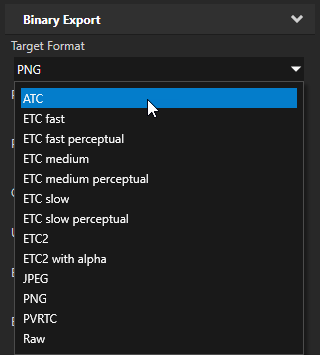
- Set the ATC Compression Scheme property to:
- Explicit alpha. RGBA image, where alpha component is explicit on each pixel, data compressed to pixel_count / 1, giving 1:4 compression ratio.
- Interpolated alpha. RGBA image, where alpha component is interpolated between pixels, data compressed to pixel_count / 1, giving 1:4 compression ratio.
- No alpha. RGB image, data compressed to pixel_count / 2, giving 1:6 compression ratio.
Using the ETC compression
To use the ETC compression:
- In Kanzi Studio in the Library select Resource Files > Images, and select the image for which you want to apply compression.
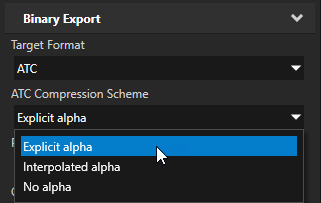
- In the Properties set the Target Format property to the ETC compression you want to use:
- ETC fast, medium, and slow refer to the speed of image compression and image quality, not the resulting size or decompression time. Slow returns the best image quality.
For the best final result with the ETC1 compression scheme use ETC slow perceptual.
- ETC Perceptual refers to the emphasis of the green color channel over the red and blue color channels, based on the human visual system color affinity.
When using ETC1 compression scheme during development ETC fast is the most useful. - ETC2 to use the ETC2 compression scheme.
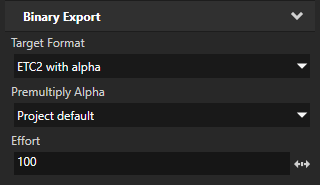
To set the quality of ETC2 compression use the Effort property.
The value of Effort corresponds to the compression time and image quality, not to the resulting size or decompression time. For the best image quality result set Effort to 100. During development 0 is the most useful because it gives the shortest compression time.
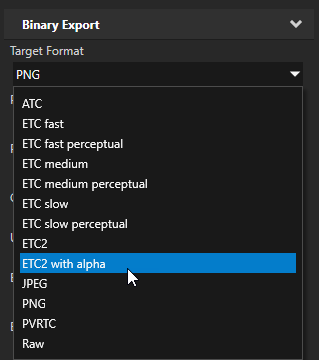
- ETC2 with alpha to use the ETC2 compression scheme for images with alpha channel
Using the PVRTC compression
The PVRTC algorithm works best for photorealistic textures. Kanzi supports the PVRTC compression according to the PVRTC1 and PVRTC2 schemes. PVRTC2 has higher quality than PVRTC1, especially with textures requiring sharp alpha transitions, but it is not supported by all PowerVR hardware. Additionally, only Imagination Technologies hardware, or a desktop platform using a development emulator support PVRTC compression.
When using the PVRTC to compress textures, to get correct results, the textures must be square and the power of two in size.
To use the PVRTC compression:
- In Kanzi Studio in the Library select Resource Files > Images, and select the image for which you want to apply compression.
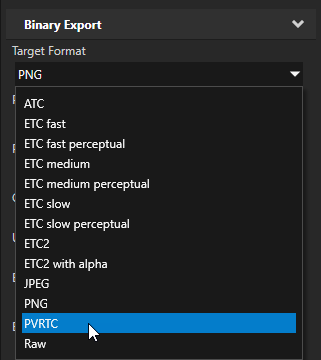
- In the Properties set the Target Format property to PVRTC.
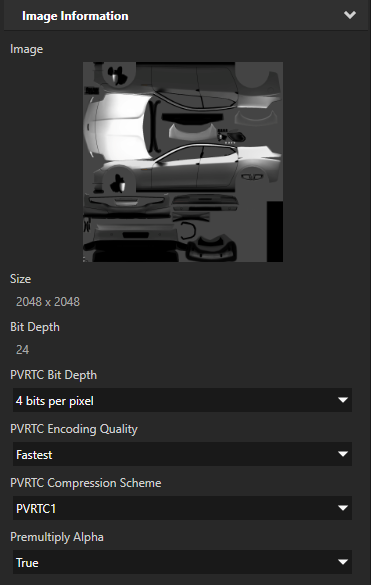
- In the Properties set:
- PVRTC Bit Depth property to either:
- 2 bits/pixel results in smaller, but lower quality textures.
- 4 bits/pixel results in larger, but higher quality textures. With 4 bits/pixel bit depth the texture file size is twice as big as with 2 bits/pixel texture, but it results in a higher quality texture.
- PVRTC Encoding Quality property to either Fastest, Fast, Normal, High, or Best.
These values correspond to the compression time and image quality, not to the resulting size or decompression time. For the best final result use Best. During development Fastest is the most useful. - PVRTC Compression Scheme property to either PVRTC1 or PVRTC2. Both schemes support RGB and RGBA textures. Kanzi automatically uses RGBA for all images that contain the alpha channel.
- Premultiply Alpha property. Select True if you want to premultiply the alpha channel into color channels in images that have an alpha channel, otherwise select False. Select Project default if you want to control the value of this property with the Kanzi Studio project property Use Premultiplied Alpha by Default. See Projects.
Preprocessing images
Kanzi Studio compresses the images when you create the kzb file. To manually preprocess images, in the Library > Resource Files > Images right-click one or more images you want to preprocess, and select Preprocess images.
Note that Kanzi can compress textures using the ATC, ETC, and PVRTC algorithms. See Using the Image node.
See also
Adjusting the data size
Loading resources in parallel
Using mipmaps
Filtering textures
Troubleshooting the performance of your application
Images and textures best practices
Best practices
Images

Open topic with navigation